
Is your macOS Tahoe slow after the update? You’re not alone. You expected that shiny new Liquid Glass look to feel snappy, and instead your Mac started dragging — apps bouncing forever in the Dock, the beachball spinning, fans kicking in for no reason. I went through the exact same thing on my MacBook right after installing Tahoe, and my first reaction was to panic that I’d broken something.
Here’s the reassuring part: a slow Mac right after a macOS update is almost always temporary and fixable. Most of the time it’s background work Apple’s software is doing behind the scenes, not a real problem with your machine. Below are 10 fixes, starting with the one that solves it for most people — a little patience — and moving into the deeper tweaks if the slowdown sticks around.
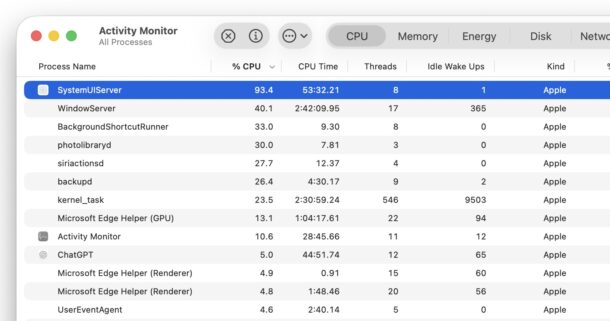
Quick Answer: If macOS Tahoe is running slow right after updating, the most common cause is Spotlight re-indexing your files in the background, which can take a few hours to a full day. Leave your Mac plugged in and awake for 24 hours first. If it’s still slow, check Activity Monitor for CPU-hogging apps, disable heavy login items, and restart.
Why is macOS Tahoe so slow?
Before you start changing settings, it helps to know what’s actually going on. When macOS Tahoe feels slow — especially soon after the update — the usual suspects are:
- Spotlight re-indexing — after a big update, macOS rebuilds its search index, which hammers the CPU and disk for hours.
- Background cleanup tasks — the system finishes migrating files, updating apps, and syncing iCloud right after an upgrade.
- Too many login items — apps launching at startup pile up and slow everything down.
- Low free storage — a nearly full drive makes macOS crawl.
- Heavy visual effects — the new Liquid Glass transparency can tax older Macs.
- Not enough free memory (RAM) — too many apps and browser tabs open at once.
The fixes below go from the easiest and most likely to work, down to the deeper solutions — so try them in order.
10 Fixes for macOS Tahoe Running Slow
Fix 1: Give Spotlight time to finish indexing
This is the number-one reason a Mac feels slow right after updating to Tahoe, and the easiest to fix — you just wait.
Step 1: Leave your Mac plugged into power and don’t let it sleep.
Step 2: Give it up to 24 hours (longer if you have a big drive) to finish re-indexing.
Step 3: Check progress — click the Spotlight (magnifying glass) icon and start typing; if it says “Indexing,” it’s still working.
In my case, the slowdown vanished on its own the next morning once indexing wrapped up.
Tip: Don’t judge a fresh macOS update in the first few hours. A lot of the “Tahoe is slow” complaints online are really just indexing that hadn’t finished yet.
Fix 2: Check Activity Monitor for CPU hogs
If the slowdown sticks around, find out what’s eating your resources.
Step 1: Open Activity Monitor (Applications → Utilities, or search Spotlight).
Step 2: On the CPU tab, click the % CPU column to sort by highest usage.
Step 3: If an app is stuck using huge CPU (and it isn’t a system process you recognize), select it and click the X to quit it.
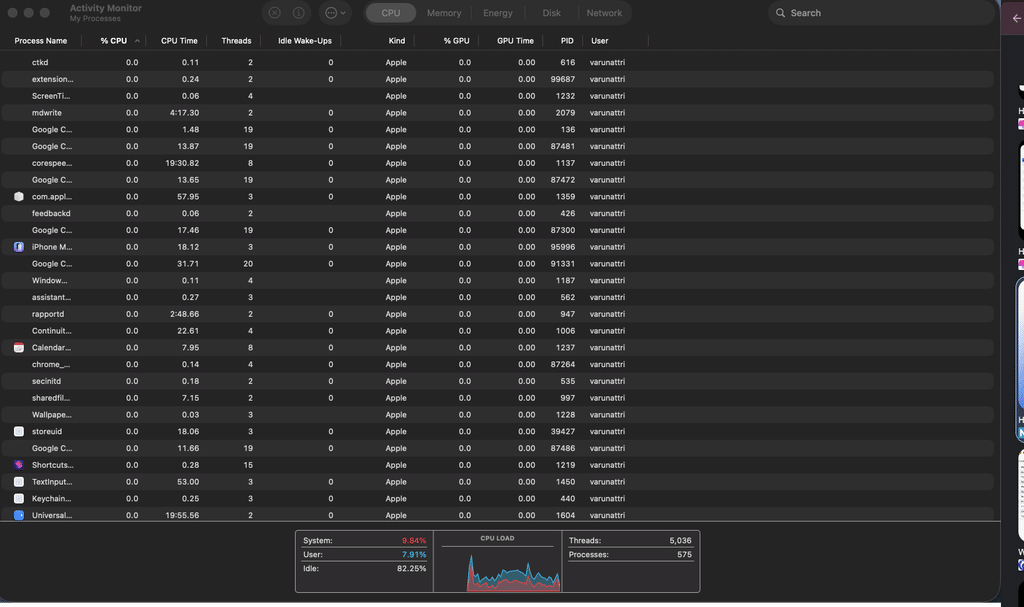
Note: Seeing “mds” or “mds_stores” high on the list? That’s Spotlight indexing (Fix 1) — leave it alone and let it finish.
Fix 3: Restart your Mac
An update leaves a lot of half-finished processes running. A clean restart clears them.
Step 1: Click the Apple menu → Restart.
Step 2: Uncheck “Reopen windows when logging back in” so you start fresh.
Step 3: Let it boot fully and give it a couple of minutes before judging the speed.
Fix 4: Free up storage space
macOS needs breathing room. If your drive is nearly full, Tahoe will feel sluggish.
Step 1: Go to Apple menu → System Settings → General → Storage.
Step 2: Use the recommendations to empty Trash automatically and remove large, unused files.
Step 3: Aim to keep at least 10–15% of your drive free.
Fix 5: Trim your login items
Too many apps launching at startup is a classic cause of a slow Mac.
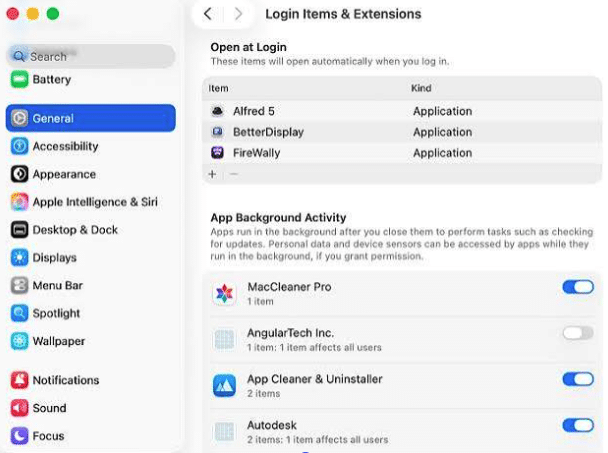
Step 1: Open System Settings → General → Login Items & Extensions.
Step 2: Under “Open at Login,” select anything you don’t need and click the – button.
Step 3: Restart and see if startup feels faster.
Fix 6: Reduce visual effects (Liquid Glass)
Tahoe’s new transparency looks great but can slow down older Macs. Toning it down helps.
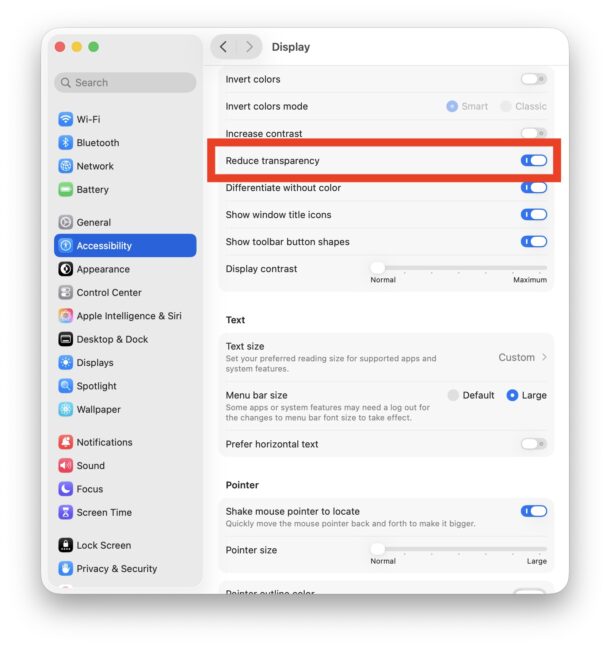
Step 1: Go to System Settings → Accessibility → Display.
Step 2: Turn on Reduce transparency and Reduce motion.
Step 3: The interface looks a little flatter, but it feels noticeably quicker.
Fix 7: Close unused apps and browser tabs
Running low on memory forces macOS to use the disk as slow “virtual memory.”
Step 1: Quit apps you’re not using (Cmd + Q, not just closing the window).
Step 2: Close extra browser tabs — each one uses real memory.
Step 3: Check the Memory tab in Activity Monitor; if “Memory Pressure” is red, you’re overloaded.
Fix 8: Update your apps and macOS
Early Tahoe slowdowns are often fixed by point updates and app patches.
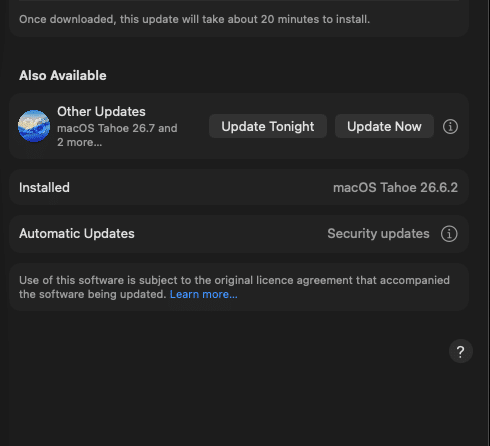
Step 1: Go to System Settings → General → Software Update and install anything pending (like 26.1).
Step 2: Open the App Store → Updates and update your apps.
Step 3: Developers push Tahoe-compatible updates quickly after a release — these often restore speed.
Fix 9: Reset NVRAM (Intel Macs) or just restart (Apple silicon)
Odd performance glitches sometimes clear with an NVRAM reset on Intel Macs.
On Intel Macs: Shut down, then turn on and immediately hold Option + Command + P + R for about 20 seconds, then release.
On Apple silicon Macs: There’s no NVRAM reset — a normal shutdown and restart does the same job.
Fix 10: Reinstall macOS Tahoe (last resort)
If nothing else works and your Mac is still crawling days later, a clean reinstall clears a corrupted update.
Step 1: Back up your Mac with Time Machine first — this is essential.
Step 2: Boot into Recovery (Apple silicon: hold the power button until “Loading startup options”; Intel: hold Command + R).
Step 3: Choose Reinstall macOS Tahoe and follow the prompts (your files stay, but back up anyway).
Safety note: Always back up before reinstalling. It usually keeps your data, but a backup means you’re never at risk.
Comparison: which fix to try first
| Symptom | Most likely cause | Fix to try first |
|---|---|---|
| Slow only for the first day after updating | Spotlight re-indexing | Fix 1 (wait 24 hrs) |
| One app freezing / fans loud | A CPU-hogging app | Fix 2 (Activity Monitor) |
| Slow startup / takes forever to boot | Too many login items | Fix 5 (trim login items) |
| General lag on an older Mac | Liquid Glass visual effects | Fix 6 (reduce transparency) |
| Beachball with many tabs open | Low free memory | Fix 7 (close apps/tabs) |
| Still slow after days | Corrupted update | Fix 8 → Fix 10 (update/reinstall) |
Frequently Asked Questions
Why is macOS Tahoe so slow after the update?
The most common reason is Spotlight re-indexing your files in the background, which can run for hours to a full day after a big update. macOS is also finishing cleanup and app-migration tasks. Leave your Mac plugged in and awake for 24 hours, and the slowdown usually clears on its own.
Why is my Mac so slow after the Tahoe update?
Beyond indexing, common causes are too many login items, low free storage, heavy visual effects, or not enough free memory. Check Activity Monitor for CPU hogs, trim startup apps, and make sure your drive has at least 10–15% free space.
Does macOS Tahoe slow down your Mac?
Not permanently. Tahoe can feel slow for the first day due to indexing, and its Liquid Glass visual effects can tax older Macs. On supported hardware with the slowdown fixes applied, performance returns to normal or better.
Will Tahoe slow down my older Mac?
On older supported Macs, the new transparency effects can cause some lag. Turning on “Reduce transparency” and “Reduce motion” in Accessibility settings makes a noticeable difference without losing functionality.
How long does macOS Tahoe take to settle after updating?
Usually within 24 hours. Spotlight indexing and background tasks finish in that window on most Macs. If it’s still slow after a couple of days, work through the fixes above.
How do I check what’s slowing down my Mac?
Open Activity Monitor (Applications → Utilities), then check the CPU and Memory tabs. Sort by % CPU to find greedy apps, and watch “Memory Pressure” — if it’s red, you have too much running at once.
Should I reinstall macOS Tahoe if it’s slow?
Only as a last resort, and only after backing up with Time Machine. Try the simpler fixes first — indexing, restart, login items, and updates solve the vast majority of slowdowns without a reinstall.
Is it better to wait before updating to a new macOS?
For a work machine, yes — waiting for the first point release (like 26.1) means early bugs are ironed out. If you’ve already updated and it’s slow, the fixes here will get you back to normal.
Final thoughts on fixing a slow macOS Tahoe
A slow Mac after updating to Tahoe feels alarming, but it’s rarely serious. Nine times out of ten it’s just Spotlight finishing its indexing in the background — give it a day before you touch anything. If the lag hangs around, work down the list: Activity Monitor, a restart, some free storage, and fewer login items handle almost everything. For a deeper tune-up, our full guide on how to speed up your Mac has even more tips, and if your Mac ever refuses to boot after an update, here’s what to do when your MacBook won’t turn on.