
I still remember the morning my MacBook Pro just… didn’t wake up. Coffee in hand, deadline in three hours, and the screen stayed pitch black no matter how hard I mashed the power key. No chime, no Apple logo, nothing. If your MacBook won’t turn on right now, I know that little spike of panic you’re feeling.
Here’s the good news: in most cases a dead-looking Mac isn’t actually dead. Nine times out of ten it’s a drained battery, a tired charger, a stuck power state, or a display that’s on while the screen looks off. I’ve fixed my own Mac (and a few friends’) with the exact steps below, and only rarely does it come down to real hardware failure.
So before you book a Genius Bar appointment, work through these fixes in order. Start at the top — the early ones fix the majority of cases in under five minutes.
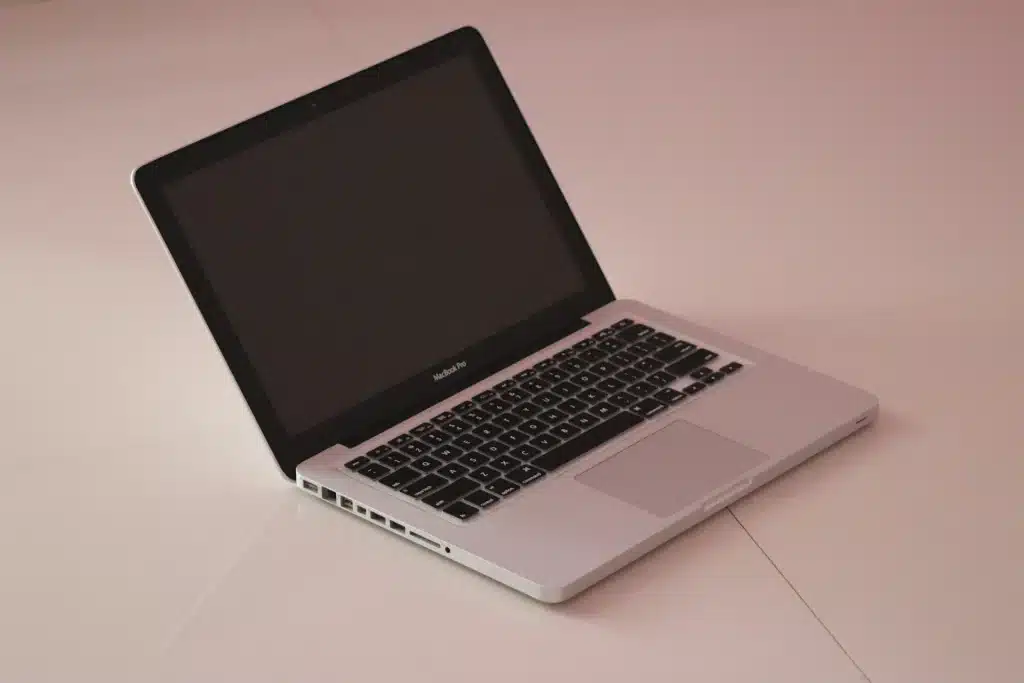
Quick Answer: If your MacBook won’t turn on, plug it into a known-good charger and wait 15 minutes, then force restart by pressing and holding the power (Touch ID) button for 10 seconds, release, and press it again. Unplug all accessories and external displays first. If it stays black after a full battery drain, leave it charging for up to 3 hours before trying again.
Why won’t my MacBook turn on?
Before you start, it helps to know what you’re dealing with. When a Mac won’t turn on, the cause almost always falls into one of these buckets:
- No power reaching the battery — bad cable, faulty adapter, dead wall outlet, or a lint-clogged port.
- A drained or deeply discharged battery — a fully flat battery can need up to a couple of hours on the charger before it shows any life.
- A stuck power state — the Mac is technically “on” but frozen, so the screen never lights up.
- A display issue — the Mac boots fine but the screen (or its backlight) doesn’t, so it looks dead.
- A software or firmware problem — a failed macOS update or corrupted startup disk can stop a normal boot.
- Hardware failure — the least common, but real (logic board, battery, or screen).
The fixes below go from most common and harmless to most advanced, so you don’t do anything drastic before the simple stuff.
10 Fixes for a MacBook That Won’t Turn On
Fix 1: Check the power — cable, adapter, and outlet
It sounds too obvious, but a bad power connection is the number-one reason a MacBook won’t turn on.
Step 1: Plug your Mac into a wall outlet you know works (skip power strips and extension leads for now).
Step 2: Use the original Apple charger and cable if you have them. Cheap third-party cables often can’t deliver enough wattage.
Step 3: On a MagSafe Mac, check the little light on the connector — amber means charging, green means full. No light at all points to a power problem.
Step 4: Inspect the cable for frays and the ports for dust or lint. Gently blow out the port if it looks clogged.
Give it 10–15 minutes on the charger before deciding it’s not working — a flat battery needs time.
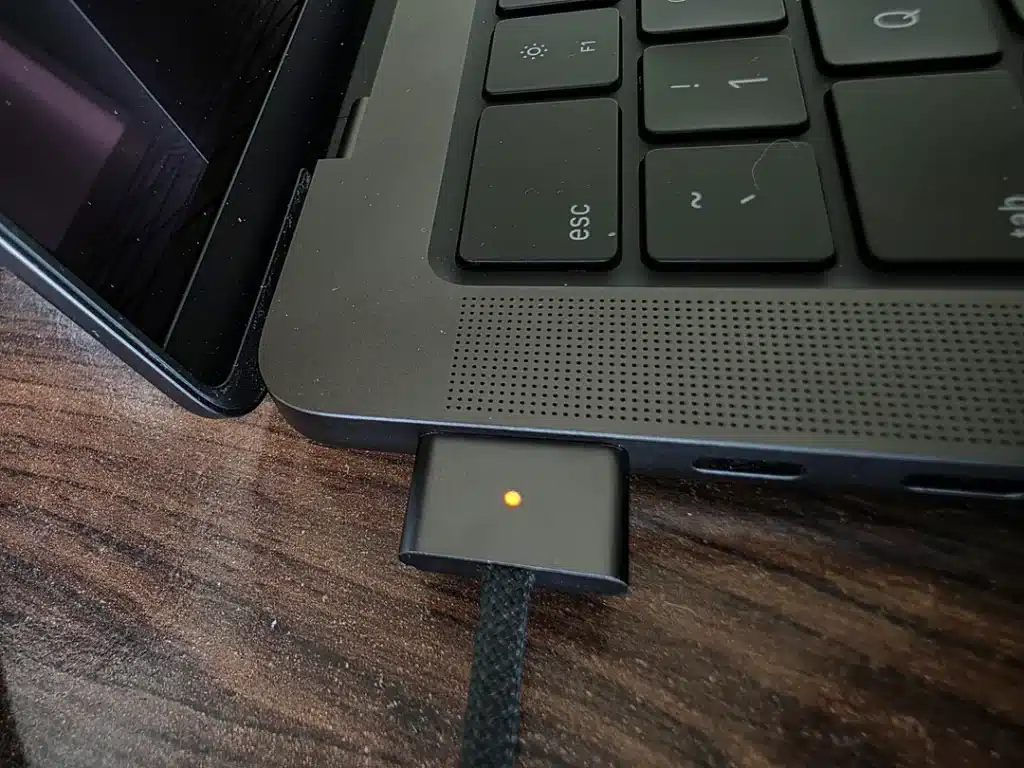
Tip: Try a different charger or cable if you can borrow one. Swapping the adapter alone fixes a surprising number of “dead” Macs.
Fix 2: Do a hard force restart
If power is fine but nothing happens, your Mac may be frozen in a stuck state. A force restart clears it.
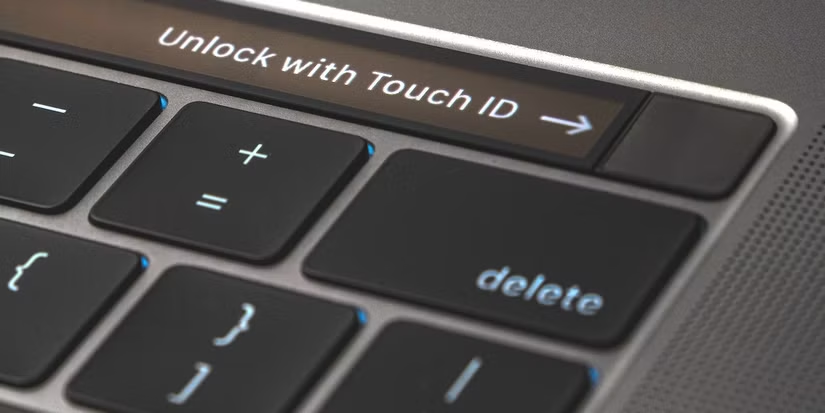
Step 1: Press and hold the power button (the Touch ID key on most modern MacBooks) for a full 10 seconds.
Step 2: Release it, wait a few seconds, then press the power button once normally.
Step 3: Listen and watch for the startup chime, the fans, or the Apple logo.
This single step revives a huge share of MacBooks that appear dead.
Fix 3: Let a fully drained battery charge (the 3-hour trick)
If your battery ran all the way to zero, the Mac can look completely dead even while charging. This one caught me out personally.
Step 1: Connect the official charger and leave everything alone.
Step 2: Wait — sometimes it takes anywhere from 15 minutes up to about 3 hours for a deeply drained battery to hold enough charge to power on.
Step 3: After it’s had time, try the force restart from Fix 2 again.
Heads up: A deeply discharged battery often shows zero signs of life for the first several minutes. Don’t give up in the first two minutes — patience genuinely fixes this.
Fix 4: Unplug every accessory and external display
A faulty peripheral or an external monitor can stop your Mac from booting normally — or trick you into thinking the screen is dead.
Step 1: Disconnect everything: USB drives, hubs, adapters, printers, second monitors, even non-essential cables.
Step 2: Leave only the power connection.
Step 3: Try turning it on again.
If it boots now, plug accessories back one at a time to find the troublemaker.
Fix 5: Rule out a display / black screen problem
Sometimes the Mac is on — you just can’t see it. This is the “macbook won’t turn on but is on” situation.
Step 1: In a dark room, look very closely at the screen for a faint glow or image (a dim backlight).
Step 2: Listen for the startup chime, fan noise, or the keyboard backlight coming on.
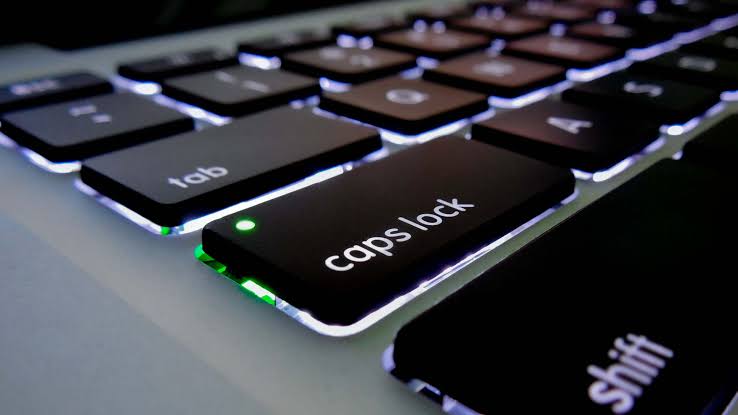
Step 3: Press Caps Lock — if the key’s light toggles, your Mac is powered on and it’s a display issue, not a power issue.
Step 4: Try adjusting brightness (F2) a few times in case it’s turned all the way down.
If it’s a screen/backlight fault, jump to the black screen section below.
Fix 6: Reset the SMC (Intel Macs only)
On older Intel MacBooks, the System Management Controller handles power and battery. Resetting it fixes stubborn power issues. (Apple Silicon Macs have no SMC — skip to Fix 7.)
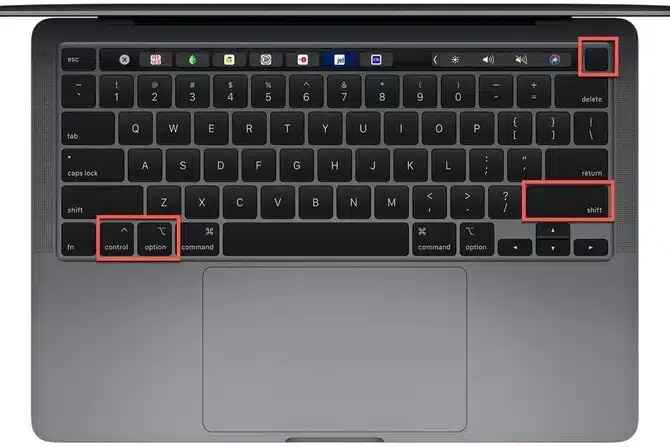
For Intel MacBooks with a T2 chip:
Step 1: Shut down. Press and hold Control + Option (left) + Shift (right) for 7 seconds.
Step 2: Keep holding and add the power button for another 7 seconds.
Step 3: Release all keys, wait a few seconds, then press power to start up.
Note: If you have an Apple Silicon Mac (M1, M2, M3, M4 and newer), there’s no SMC to reset — a simple shutdown and restart does the same job.
Fix 7: Boot into macOS Recovery
If the Mac powers on but can’t finish starting up, Recovery Mode lets you repair the disk or reinstall macOS.
On Apple Silicon (M-series):
Step 1: Fully shut down (hold power 10 seconds if needed).
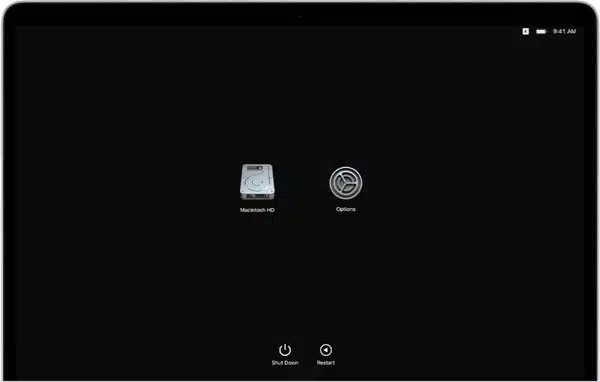
Step 2: Press and hold the power button until you see “Loading startup options.”
Step 3: Click Options → Continue to enter Recovery.
On Intel Macs:
Step 1: Turn on and immediately hold Command (⌘) + R until the Apple logo appears.
Once in Recovery, open Disk Utility → First Aid to repair the startup disk.
Fix 8: Run First Aid and repair the startup disk
While you’re in Recovery, this often fixes a Mac that boots to a black or frozen screen.
Step 1: In Recovery, choose Disk Utility and click Continue.
Step 2: Select your main disk (usually “Macintosh HD”), click First Aid, then Run.
Step 3: Let it finish, then restart normally.
Fix 9: Reinstall macOS (your files stay put)
If the startup disk is fine but macOS is corrupted, reinstalling the system usually keeps your personal files.
Step 1: From the Recovery menu, pick Reinstall macOS.
Step 2: Follow the prompts and choose your startup disk.
Step 3: Keep it plugged in and let it run — this can take a while.
Safety note: Reinstalling macOS from Recovery does not erase your files, but if your Mac won’t boot at all, back up first using Recovery Mode or a professional if the data matters.
Fix 10: Revive with DFU mode, then call Apple
If nothing above works, the deepest option is DFU mode, which revives the firmware using a second Mac. It’s the last stop before a repair.
Step 1: On a second Mac, open Apple Configurator (or Finder on newer macOS) and connect the two with a USB-C cable — use the back-left USB-C port on the dead Mac.
Step 2: Put the dead Mac into DFU mode (the exact key combo depends on the model — follow Apple’s official steps).
Step 3: Choose Revive first (keeps data); use Restore only as a last resort (erases everything).
If DFU fails, it’s time for Apple Support or an authorized service provider — you’re likely looking at a battery, screen, or logic-board issue.
MacBook won’t turn on: black screen
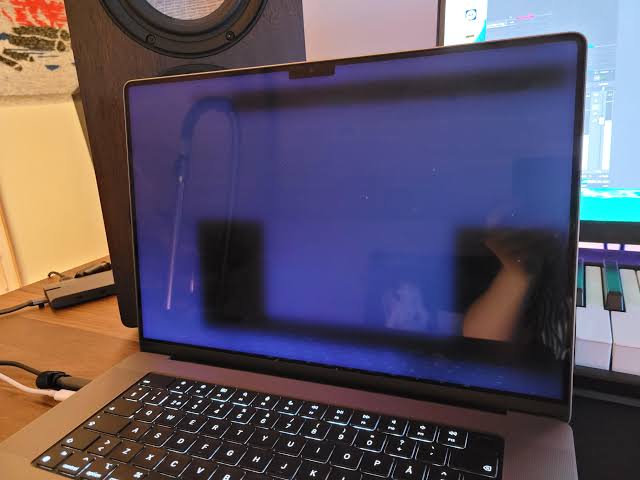
If the Mac powers on (fans, chime, or Caps Lock light) but the screen stays black, it’s a display problem, not a power one.
- Turn brightness up with F2 — it may be at zero.
- Force restart (Fix 2) to clear a stuck display state.
- Disconnect external monitors that may be “stealing” the display output.
- Boot into Safe Mode (Apple Silicon: hold power → select disk → hold Shift → “Continue in Safe Mode”) to rule out software.
- If you see a faint image, the backlight may have failed — that’s a hardware repair.
MacBook won’t turn on or charge
If there’s no charging light and no power, focus on the power chain:
- Test a different outlet, cable, and adapter — one at a time.
- Clean the charging port (lint blocks MagSafe and USB-C more than you’d think).
- On MagSafe, no light usually means the cable, adapter, or port is the problem.
- Let it sit on the charger for the full 3 hours (Fix 3) before assuming the battery is dead.
- Still nothing? The battery or charging circuit may need service.
MacBook Air won’t turn on
The steps are the same as MacBook Pro, with a couple of Air-specific notes:
- The MacBook Air’s power button is the Touch ID key in the top-right corner — hold it 10 seconds for a force restart.
- Fanless Airs run silent, so use the Caps Lock test (Fix 5) to check if it’s actually on.
- Give a drained Air extra charging time; the smaller battery can read empty for a while.
Comparison: symptom, likely cause, and quick fix
| What you’re seeing | Most likely cause | Fastest fix to try |
|---|---|---|
| Totally dead, no light, no sound | Drained battery or dead charger | Fix 1 + Fix 3 (charge 3 hrs) |
| Black screen, but fans/chime/Caps Lock work | Display or backlight issue | Fix 5, then black screen section |
| Powers on then shuts off / loops | Software or startup disk | Fix 7 + Fix 8 (Recovery + First Aid) |
| No MagSafe/charging light at all | Cable, adapter, or port | Fix 1 + won’t-charge section |
| Stuck on Apple logo or won’t finish boot | Corrupted macOS | Fix 8 → Fix 9 (reinstall) |
| Nothing works after everything above | Firmware or hardware failure | Fix 10 (DFU) → Apple Support |
Frequently Asked Questions
Why won’t my MacBook turn on even when it’s plugged in?
Usually the battery is deeply drained, the charger or cable is faulty, or the charging port is blocked. Try a different outlet and adapter, clean the port, and leave it charging for up to 3 hours before trying a force restart.
My MacBook won’t turn on but the screen is black — is it broken?
Not necessarily. Press Caps Lock or listen for fans and the chime. If there are signs of life, your Mac is on and it’s a display or backlight problem, not a dead machine. Turn up brightness and force restart first.
How do I force restart a MacBook that won’t turn on?
Press and hold the power button (the Touch ID key on modern MacBooks) for a full 10 seconds, release, wait a moment, then press it again. This clears a frozen power state and revives most unresponsive Macs.
How long should I charge a completely dead MacBook?
Leave it on the official charger for at least 15 minutes, and be prepared to wait up to about 3 hours for a fully drained battery. A deeply discharged battery can show zero signs of life at first, so don’t give up early.
How do I boot my MacBook into Recovery Mode if it won’t start normally?
On Apple Silicon Macs, shut down, then press and hold the power button until you see “Loading startup options,” then choose Options. On Intel Macs, turn on and immediately hold Command + R until the Apple logo appears.
My MacBook won’t turn on after a macOS update — what now?
A failed update can leave the startup disk corrupted. Boot into Recovery Mode, run Disk Utility → First Aid, and if that doesn’t help, reinstall macOS from Recovery (your files usually stay intact).
Do I need to reset the SMC on my M1/M2 MacBook?
No. Apple Silicon Macs (M1, M2, M3, M4 and newer) don’t have an SMC. Simply shutting down fully and restarting does the same thing. SMC resets only apply to older Intel Macs.
When should I take my MacBook to Apple?
If you’ve tried the power checks, force restart, long charge, Recovery Mode, and DFU revive with no luck, you’re likely facing a battery, screen, or logic-board fault. That’s the point to contact Apple Support or an authorized service provider.
Final thoughts on fixing a MacBook that won’t turn on
A MacBook that won’t turn on feels like an emergency, but it’s rarely as bad as it looks. In my experience the fix is almost always in the first few steps — a proper charger, a patient charge, and a 10-second force restart bring most Macs right back. Work down the list in order, don’t skip the boring power checks, and only reach for Recovery or DFU when the simple stuff fails.
Save this guide for the next time it happens (because with laptops, there’s usually a next time). And if your Mac is back on but feeling sluggish, check out our guide on how to speed up your Mac to keep it running smooth.